Panasonic DMRES15EBL Bedienungsanleitung
Stöbern Sie online oder laden Sie Bedienungsanleitung nach DVD Spieler Panasonic DMRES15EBL herunter. Panasonic DMRES15EBL User manual Benutzerhandbuch
- Seite / 52
- Inhaltsverzeichnis
- FEHLERBEHEBUNG
- LESEZEICHEN


- Operating Instructions 1
- DMR-ES15EB/EBL 1
- Cartridge Protection Off 2
- Disc Protection Off 2
- Table of contents 3
- Safety precautions 3
- Included accessories 4
- Disc handling 4
- Unit care 4
- Control reference guide 5
- Disc information 6
- Play-only discs 7
- Connection 10
- Other connections 11
- Owner ID 12
- TV Tuning (Auto Setup) 13
- To enjoy progressive video 14
- Television operation 15
- Disc Insertion/Ejection 17
- -R -R DL -RW(V) +R +R DL +RW 18
- To specify a time to stop 19
- Flexible Recording 19
- 1 Press [VIDEO Plus+] 20
- 3 Press [ENTER] 20
- 4 Press [ENTER] 20
- Timer recording 21
- Check, change or delete a 22
- Manual Recording 23
- Linked timer recordings with 23
- EXT LINK 23
- 1 Insert a disc (➔ page 18) 24
- 2 Press [q] (PLAY) 24
- Operations during play 25
- 1 Press [DIRECT NAVIGATOR] 26
- Playing MP3 26
- 1 Press [DISPLAY] 28
- Using on-screen menus 28
- 1 While stopped 29
- 08 BBC1 7/ 5 SUN 30
- Title operations 31
- Chapter operations 31
- DIRECT NAVIGATOR Title View 31
- DVD-RAM 31
- Creating playlists 32
- Playlist operations 33
- Deleting titles during play 35
- My favorite 36
- Chapter 1 36
- -R DL +R DL 37
- -R -R DL +R +R DL 37
- +R +R DL 37
- Changing the unit’s settings 39
- Set the clock manually 41
- Manual Tuning 42
- -R -R DL 43
- -RW(V) +R 43
- +R DL +RW 43
- Messages 44
- RAM -RW(V) +RW 44
- Frequently asked questions 45
- Troubleshooting guide 46
- RAM -RW(V) +R +R DL +RW 47
- Glossary 49
- Specifications 50
- CAUTION! 51
- WARNING: 51
- RQT8320-B 52
Inhaltsverzeichnis
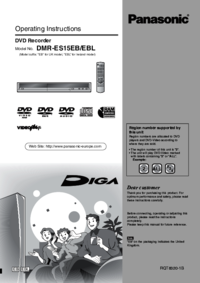
RQT8320-BOperating InstructionsDVD RecorderDMR-ES15EB/EBLModel No.(Model suffix: “EB” for UK model, “EBL” for Ireland model)EB EBLDear customerThank y
RQT832010ConnectionUsing a fully wired 21-pin Scart lead• You can use a variety of Q Link functions by connecting the unit to a Q Link compatible tele
RQT832011The S VIDEO OUT terminal achieves a more vivid picture than the VIDEO OUT terminal. (Actual results depend on the television.)COMPONENT VIDEO
RQT832012TV Tuning (Auto Setup)1 Turn on the mains for the television (and connected equipment) and select the AV input for this unit.2 Press [^ DVD]
RQT832013This unit is not designed to control (turn on or change channels on) your satellite receiver. However, you can use VIDEO Plus+ Recording by m
RQT832014Set up to match your television and remote controlChoose the setting to suit your television and preference.1 While stoppedPress [FUNCTIONS].
RQT832015You can operate the TV through the unit’s remote control.Point the remote control at the television While pressing [^ TV], enter the code wit
RQT832016Important notes for recordingRecording of bilingual programmeBoth main and secondary audio can be recordedYou can change the audio during pla
RQT832017Depending on the content being recorded, the recording times may become shorter than indicated.1It is not possible to record or play continuo
RQT832018Recording television programmes • You can record up to 99 titles on one disc. • You can record up to 49 titles on one disc.See also the n
RQT832019During recordingPress [* REC] on the main unit to select the recording time. • The unit’s display changes as shown below.• This does not work
RQT83202Display the FUNCTIONS menu to view all functions on this unit and select function for timer recording etc.(For United Kingdom and Republic of
RQT832020Timer recording See also the notes “Important notes for recording” (➔ page 16).Preparation• Turn on the television and select the app
RQT832021You can enter up to 16 programmes up to a month in advance. (Each daily or weekly programme is counted as one programme.)1 Press [PROG/CHECK]
RQT832022Timer recordingRefer to the control reference on page 20.Even when the unit is turned off, you can display the timer recording list by pressi
RQT832023Recording from a satellite/digital terrestrial receiver Preparation• Insert a disc (➔ page 18).• When recording a bilingual programme
RQT832024Playing discsPreparation• Turn on the television and select the appropriate video input to suit the connections to this unit.• Turn on this u
RQT832025 Excluding MP3/JPEGOperations during playStopPress [g].The stopped position is memorized. Resume play functionPress [q] (PLAY) to restart fro
RQT832026Using menus to play MP3 and still pictures (JPEG/TIFF)Refer to the control reference on page 24.You can play CD-R/RW and DVD-R discs which co
RQT832027You can play CD-R/RW and DVD-R discs which contain still pictures (JPEG/TIFF) that have been recorded on a computer.1 Press [DIRECT NAVIGATOR
RQT832028Using on-screen menus/FUNCTIONS window and Status message1 Press [DISPLAY].• Depending on the condition of the unit (playing, stopped, etc.)
RQT832029Only when you have set “Progressive” to “On” in the Setup menu (➔ page 40).By using the FUNCTIONS window you may access the main functions qu
RQT83203Table of contentsQuick access to a variety of useful functions–“FUNCTIONS” menu . . . . . . . . . . . . . . . . . . . . . . . . . . . .2Cautio
RQT832030Editing titles/chapters • The maximum number of items on a disc:Note• Once deleted or partially deleted, title/chapters cannot be r
RQT832031After performing steps 1–3 (➔ page 30) Multiple editing is possible.After performing steps 1–5 (➔ page 30) Multiple editing is possible.Title
RQT832032Creating, editing and playing playlists• The maximum number of items on a disc:• If you exceed the maximum numbers of items for a disc, all t
RQT832033 (play only)1 While stoppedPress [FUNCTIONS].2 Press [e,r] to select “To Others” and press [ENTER].3 Press [e,r] to select “Playlists” and pr
RQT832034Copying from a video cassette recorderRefer to the control reference on page 35.If the audio output of the other equipment is monauralConnect
RQT832035Deleting titles • A title cannot be restored once it is deleted.Make certain before proceeding.• You cannot delete while recording.Wh
RQT832036DVD ManagementRefer to the control reference on page 35.Preparation• Release protection (➔ below).1 While stoppedPress [FUNCTIONS].2 Press [e
RQT832037 You can select whether to show the top menu after finalizing. Make selections before finalizing the disc.After performing steps 1–3 (➔
RQT832038Linked operations with the TV (Q Link)What is Q Link?Q Link enables you to connect this unit to a Q Link-equipped Panasonic TV and perform va
RQT832039Linked operations with the TV (Q Link)/Child Lock/Changing the unit’s settingsChanging the unit’s settingsRefer to the control reference on p
RQT83204Included accessoriesPlease check and identify the supplied accessories. Use numbers when asking for replacement parts.(Product numbers correct
RQT832040Changing the unit’s settingsRefer to the control reference on page 35.(Continued on next page)Tabs Menus Options (Underlined items are the fa
RQT832041Refer to the control reference on page 35.• In the case of a power failure, the clock setting remains in memory for approximately 60 minutes.
RQT832042Resetting channel settingRefer to the control reference on page 35.You can add or delete channels, or change programme positions.1 While stop
RQT832043TV SystemChange this setting if you connect an NTSC television or to record NTSC video from another source.1 While stoppedPress [FUNCTIONS].2
RQT832044MessagesThe following messages or service numbers appear on the unit’s display when something unusual is detected during startup and use.On t
RQT832045Frequently asked questionsSet up PageWhat equipment is necessary to play multi channel surround sound?• DVD-Video:You can play DVD-Video mult
RQT832046Troubleshooting guideBefore requesting service, make the following checks. If you are in doubt about some of the check points, or if the reme
RQT832047Operation PageCannot operate the television.The remote control doesn’t work.• Change manufacturer code. Some televisions cannot be operated e
RQT832048Troubleshooting guidePlay PagePlay fails to start even when [q] (PLAY) is pressed.Play starts but then stops immediately.• Insert the disc co
RQT832049GlossaryBitstreamThis is the digital form of multi-channel audio data (e.g., 5.1 channel) before it is decoded into its various channels.Comp
RQT83205Control reference guideRemote controlMain unitThe unit’s display1bpbqckcncmbrbtbs358blbk9cl6742bmbncscrcpcqcobo1 Turn the unit on/off (➔ page
RQT832050SpecificationsRecording SystemDVD-RAM: DVD Video Recording formatDVD-R: DVD-Video formatDVD-R DL (Dual Layer): DVD-Video formatDVD-RW: DVD-Vi
RQT832051• For your safety, be sure not to connect or handle the equipment with wet hands.• Your attention is drawn to the fact that recording pre-rec
Matsushita Electric Industrial Co., Ltd.Web Site: http://www.panasonic.co.jp/global/RQT8320-BH1205XB0EnIndexAngle . . . . . . . . . . . . . . . . . .
RQT83206Disc information: Can do, ×: Cannot do• We recommend using Panasonic discs. We also recommend using DVD-RAM discs with cartridges to protect t
RQT83207Disc information/The remote control information• The producer of the disc can control how discs are played. So you may not always be able to c
RQT83208Connection• Before connection, turn off the mains for all connected equipment and read the appropriate operating instructions. Be sure to read
RQT83209Using a fully wired 21-pin Scart lead• You can use a variety of Q Link functions by connecting the unit to a Q Link compatible television (➔ p
Weitere Dokumente für DVD Spieler Panasonic DMRES15EBL
Verwandte Produkte und Handbücher für DVD Spieler Panasonic DMRES15EBL
 (28 Seiten)
 (144 Seiten)
(64 Seiten)
(144 Seiten)
(64 Seiten)

 (90 Seiten)
 (48 Seiten)
(128 Seiten)
(50 Seiten)
(48 Seiten)
(128 Seiten)
(50 Seiten)
© 2020, manymanuals.de. Alle Rechte vorbehalten. | 0.188 s |
 Manymanuals.com
 Manymanuals.de
 Manymanuals.fr
 Manymanuals.it
 Manymanuals.pl
 Manymanuals.cz
 Manymanuals.es
 Manymanuals-pt.com
Kommentare zu diesen Handbüchern